
Landing Page Editor with 4 Layouts & Full Branding Control
Website Builder
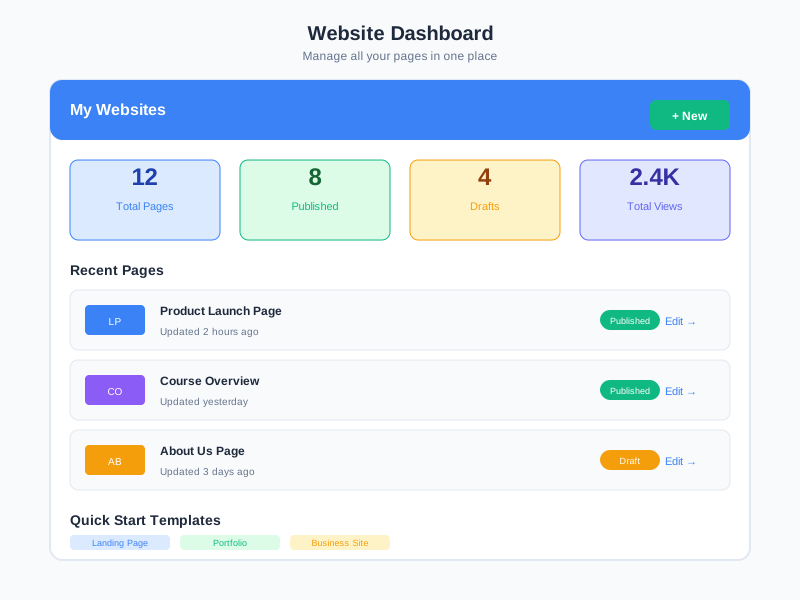
Customize your organization's public-facing landing pages through a form-based editor. Choose from 4 layout options, configure hero sections with gradients, images, or video backgrounds, set up branding with logos and company identity, add quick links, customize the login form, manage footer content with social links, and publish public announcements - all without code.
undefined
undefined
A Complete Landing Page Configuration System
Website Builder provides a form-based editor for customizing your organization's login and home landing pages. Instead of a drag-and-drop page builder, it offers structured configuration sections - hero, branding, welcome message, quick links, footer, and login form - that render into polished, responsive pages. Each landing page has a slug (login, home, about, or custom), a layout selection, and a status workflow (draft → active → archived). Public announcements run as a separate system with scheduling, types, and priority control.
Structured Section Editor
8 configurable sections: Basic Info, Hero, Logo & Branding, Welcome Message, Announcements, Quick Links, Footer, and Login Form. Each section has enable/disable toggles and dedicated fields.
Hero Background Options
4 background types: Gradient (start/end color with direction), Solid Color, Image (with overlay color and opacity control), and Video. Full color picker for all options.
Announcement System
Separate announcement manager with 5 types (info, warning, success, event, news), date scheduling, priority ranking, pin/sticky toggle, and display location targeting.
Social Links & Footer
Configure footer with copyright, contact info (email, phone, address), and 7 social media platforms: Facebook, LinkedIn, Twitter, YouTube, Instagram, Zalo, and Website.
What Website Builder Enables
Organization Branding
Present your organization's identity on the login page with custom logo, company name, branded hero section with your colors or imagery, and a professional footer with contact information.
Employee Communication
Use the public announcement system to communicate news, events, warnings, and updates directly on the login or home page - with scheduling to control when announcements appear and disappear.
Quick Navigation
Add quick links to frequently accessed resources, external tools, or important pages so employees can navigate efficiently right from the landing page.
First Impression Control
Control the first thing employees and visitors see. Choose from 4 layouts, customize the welcome message, and set the visual tone with hero backgrounds that match your organization's style.
Who Uses Website Builder
System Administrators
Configure the organization's landing pages - set layouts, upload branding assets, manage announcement schedules, and control which sections are visible on login and home pages.
Internal Communications
Publish announcements with priority levels, date ranges, and display targeting. Pin important announcements, categorize by type (info, warning, event, news), and manage visibility.
Brand Managers
Maintain consistent branding across landing pages. Upload logos, configure brand colors in hero sections, set company name, and ensure the login experience matches organizational identity.
HR Teams
Set up employee-facing landing pages with welcome messages, quick links to HR resources, and announcements about policies, events, or company news.
How Organizations Use Website Builder
Branded Login Experience
An organization wanted their login page to reflect company branding instead of the default Noova interface, giving employees a professional first impression when accessing the platform.
- Selected Split layout with hero section on the left and login form on the right
- Configured gradient background with company brand colors (start and end color)
- Uploaded company logo at 200x60px and positioned it on both hero and form
- Customized login form title, placeholder text, and submit button to match brand voice
- Set footer with company address, contact email, and links to Facebook, LinkedIn, and Zalo
Company-Wide Announcement System
An HR department needed a way to communicate important updates, policy changes, and events to all employees as they log in each day.
- Enabled announcements section on the login page with carousel position
- Created 'warning' type announcement for system maintenance with date scheduling
- Published 'event' type announcement for annual company meeting with image and link
- Used priority ranking to ensure critical announcements appear first
- Pinned ongoing policy reminders while scheduling time-limited event notifications
Employee Resource Hub
A company wanted the landing page to serve as a quick-access hub for commonly used resources, reducing the time employees spend searching for tools and information.
- Configured quick links section with 8 frequently accessed resources
- Added links to company handbook, IT support portal, leave request system, and payroll
- Set each link with descriptive title, icon, and open-in-new-tab for external tools
- Ordered links by frequency of use for optimal visibility
- Combined with welcome message section explaining how to use the resource hub
Configuring a Landing Page in Four Steps
1
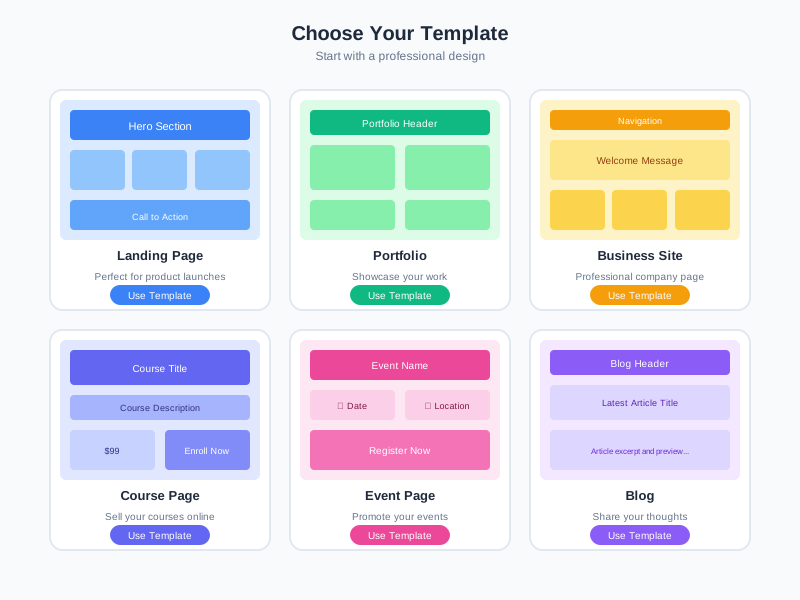
Create Page and Choose Layout
Create a new landing page and set its basic information: name, slug (login, home, about, or custom URL path), and layout. Choose from 4 layouts: Split (hero left, form right), Centered (form centered with background), Full Hero (hero full-page with overlay form), or Minimal (simple form only, no hero). Set page status to draft while configuring.
2
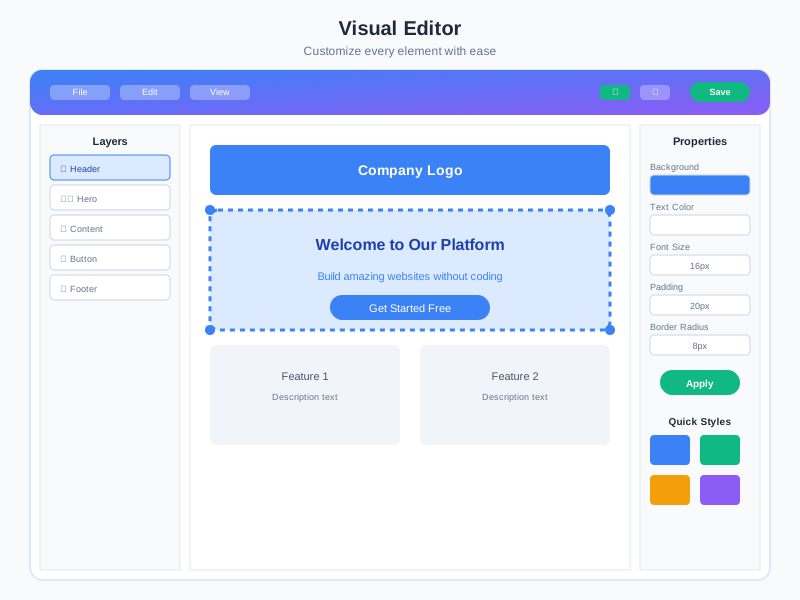
Configure Hero Section and Branding
Enable and configure the hero section. Select a background type: Gradient (set start color, end color, and direction), Solid Color (single color), Image (upload with overlay color and opacity slider 0-100%), or Video. Add a hero title and subtitle. Upload your company logo (200x60px recommended), set the company name, choose logo position (form only, hero only, or both), and toggle the 'Powered by Noova' badge.
3
Set Up Content Sections
Configure the remaining sections: Enable the Welcome Message with a title and rich content. Add Quick Links with title, URL, icon, open-in-new-tab toggle, and display order. Set up the Footer with copyright text, contact information (email, phone, address), and social media links (Facebook, LinkedIn, Twitter, YouTube, Instagram, Zalo, Website). Customize the Login Form title, placeholders, submit button text, and toggle remember-me and forgot-password options.
4
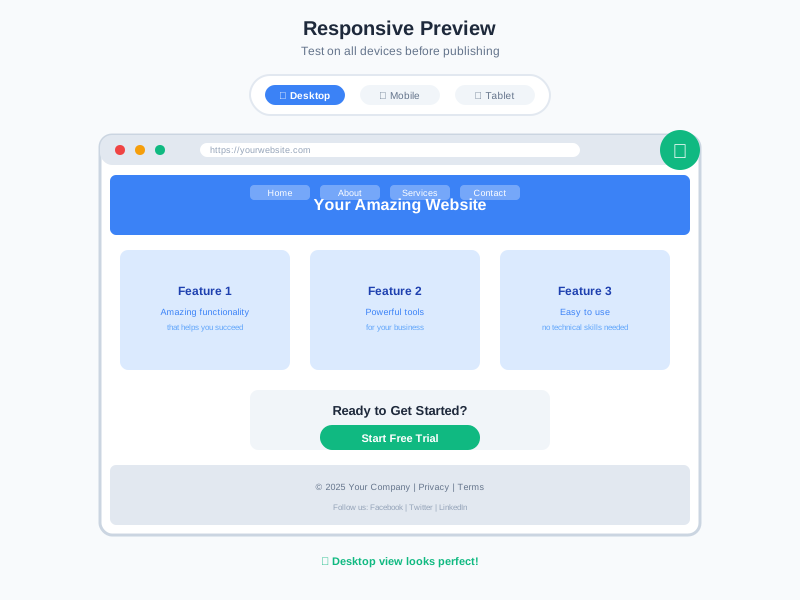
Publish and Manage Announcements
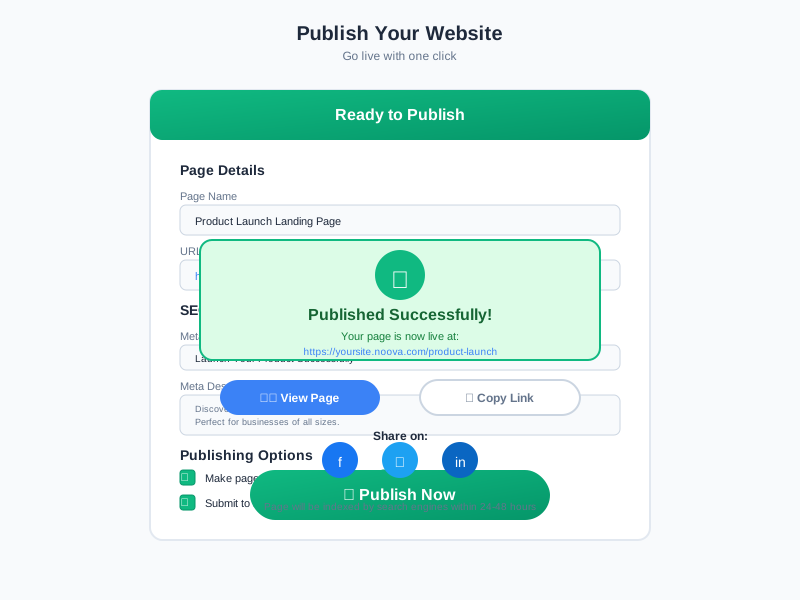
Change the page status from draft to active to publish it. Separately, manage public announcements through the Announcement Manager: create announcements with a type (info, warning, success, event, news), add an image and link, set a date range (start and end dates), configure priority (0-100) and pin/sticky options, choose display location (login page, home page, or all), and set status to active when ready to publish.
Complete Feature Breakdown
Landing Page Layouts
4 predefined layouts that control the overall page structure. Each layout determines where the hero section, login form, and content areas are positioned.
- Split - Hero section on the left, login form on the right. Default layout for a balanced visual
- Centered - Login form centered on the page with a full-width background. Clean and focused
- Full Hero - Hero section fills the entire page with the login form overlaid on top. Maximum visual impact
- Minimal - Simple login form only, no hero section. Straightforward and fast-loading
Hero Section Configuration
Full control over the hero area that creates the visual first impression of your landing page.
- Enable/disable toggle - Show or hide the hero section entirely
- Gradient background - Start color, end color, and direction (default 135deg) with full color picker
- Solid color background - Single color with color picker
- Image background - Upload image via media browser, set overlay color and overlay opacity (0-100% slider)
- Video background - Embed video as the hero backdrop
- Hero title and subtitle - Text fields for heading and subheading content
Logo & Branding
Company identity configuration that appears across the landing page.
- Logo upload - Image file with recommended 200x60px dimensions
- Company name - Text field displayed alongside or in place of logo
- Logo position - Display on form only, hero only, or both sections
- 'Powered by Noova' toggle - Show or hide the platform attribution badge
Public Announcements System
A dedicated announcement management system separate from the landing page editor, for publishing organization-wide communications.
- 5 announcement types - info, warning, success, event, news - each with visual styling
- Date scheduling - Start date and end date for automatic appearance and removal
- Priority ranking - 0-100 scale to control display order of multiple announcements
- Pin/sticky toggle - Keep important announcements at the top regardless of priority
- Image and link attachment - Add visual media and external link with custom text
- Display location - Target login page, home page, or all pages
- Status workflow - draft, active, archived for controlled publishing
- Announcement display settings on landing page: enable/disable, max display count (1-10), position (sidebar, banner, or carousel)
Quick Links & Footer
Navigation and contact information sections that provide utility to landing page visitors.
- Quick Links - Dynamic list with title, URL, icon, open-in-new-tab toggle, and display order for each link
- Footer copyright - Custom copyright text field
- Footer contact - Email, phone number, and address fields
- Social media links - 7 platforms supported: Facebook, LinkedIn, Twitter, YouTube, Instagram, Zalo, and Website URL
- Enable/disable toggles - Independently show or hide quick links and footer sections
Login Form Customization
Control the text and options displayed on the login form to match your organization's branding and language.
- Form title - Custom heading text (default: 'Đăng nhập')
- Email placeholder - Custom placeholder text for the email input field
- Password placeholder - Custom placeholder text for the password input field
- Submit button text - Custom label for the login button
- Remember me toggle - Show or hide the 'Remember me' checkbox
- Forgot password toggle - Show or hide the 'Forgot Password' link
Frequently Asked Questions
Common questions about Website Builder
Ready to Brand Your Landing Pages?
Start customizing your organization's login and home pages with branded hero sections, logos, announcements, quick links, and footer content.


